
With segmentation you can help yourself send more relevant communication to your guests and customers.
It is no news that recipients want relevant communication – and you probably recognize that from yourself and your own inbox.
Segmentation is one of the most obvious paths to success and more interaction in your newsletters.
In addition to master data, such as first name, reference, etc., you can also segment on all the tracking data available to you on the list, if you have a Premium license. Read more about tracking segmentation here.
What is a segment?
A segment consists of a set of rules, and these rules consist of a set of criteria. In Heyloyalty, you can specify at every level whether all rules and criteria must be met before a contact is included in the segment. We call this “And/Or” segmentation.
An example of this is, for instance: I want to target men who are over 25 and interested in shoes, or who are over 25 and interested in pants.
We offer a selection of standard segmentation fields that you can use to segment your list, for example. These include: when campaigns are opened, the member’s sign-up date, sent campaigns, and more. In addition, you can segment based on the fields you’ve linked or created in your list. So both the standard fields and the fields you’ve created yourself can be used to create a segment.
Create a segment in a list
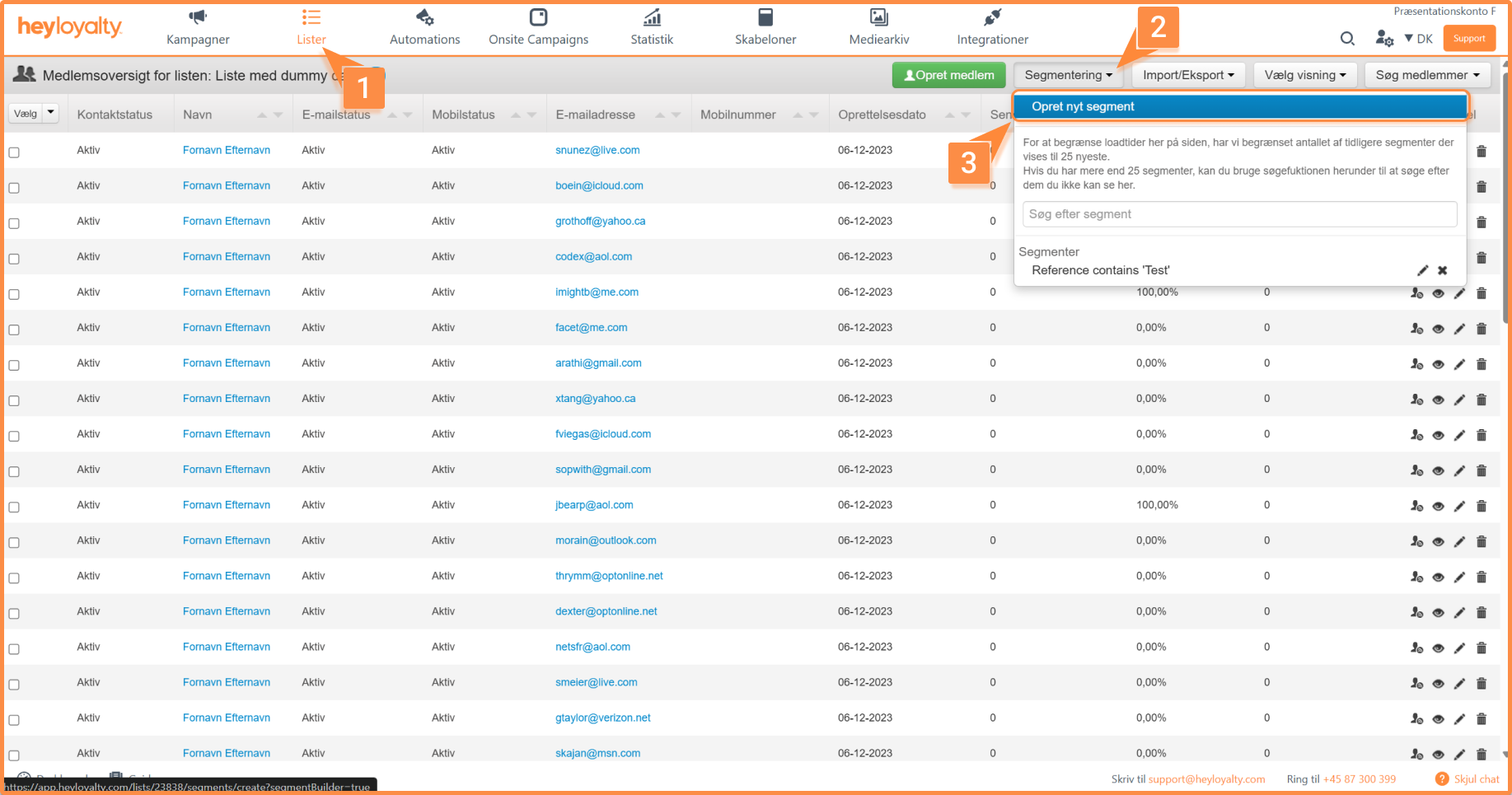
Click Lists –> Click your list –> Segmentation –> Create new segment
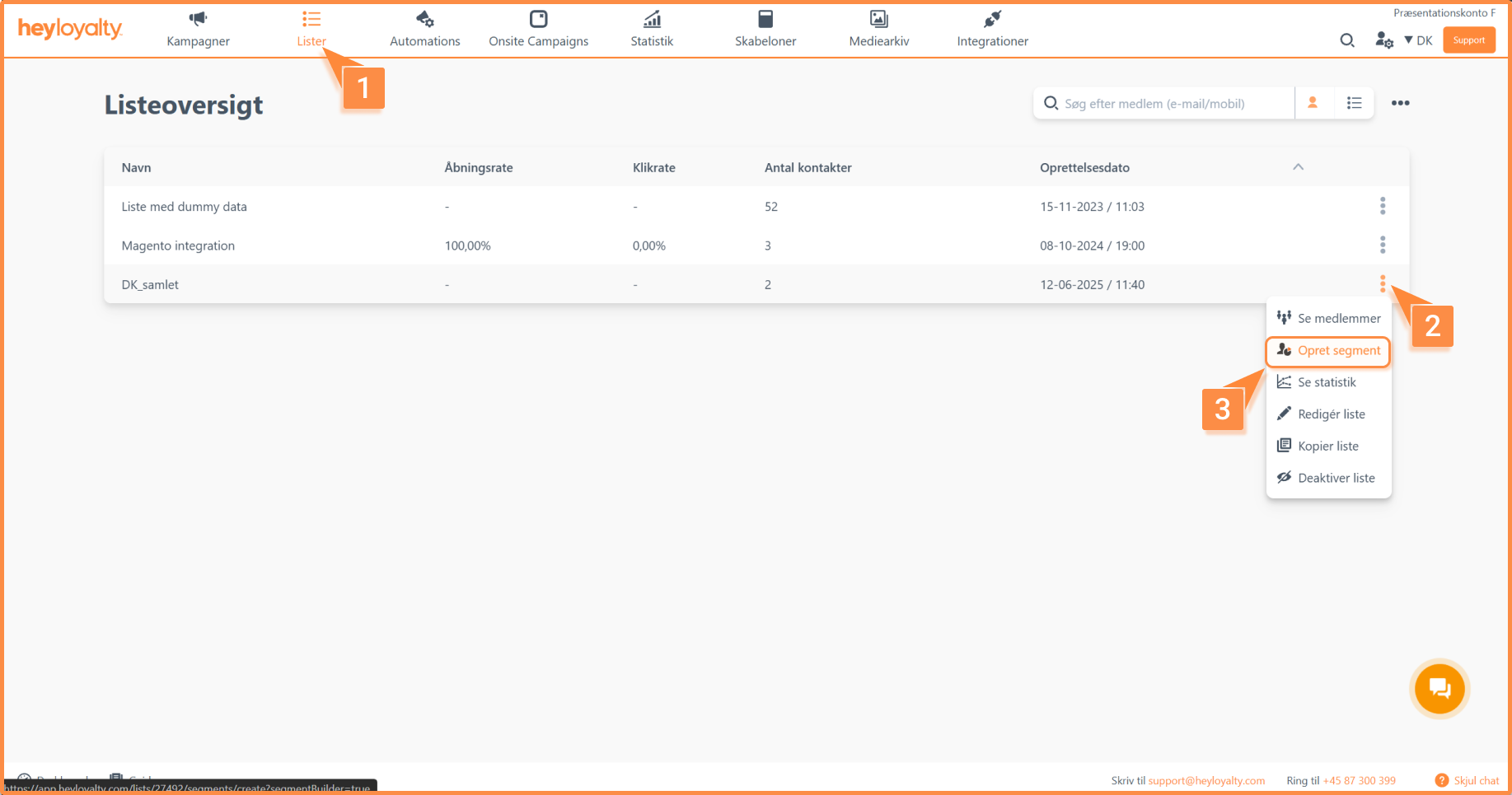
Alternatively, you can access the segment builder by clicking on Lists –> ⁝ –> Create Segment
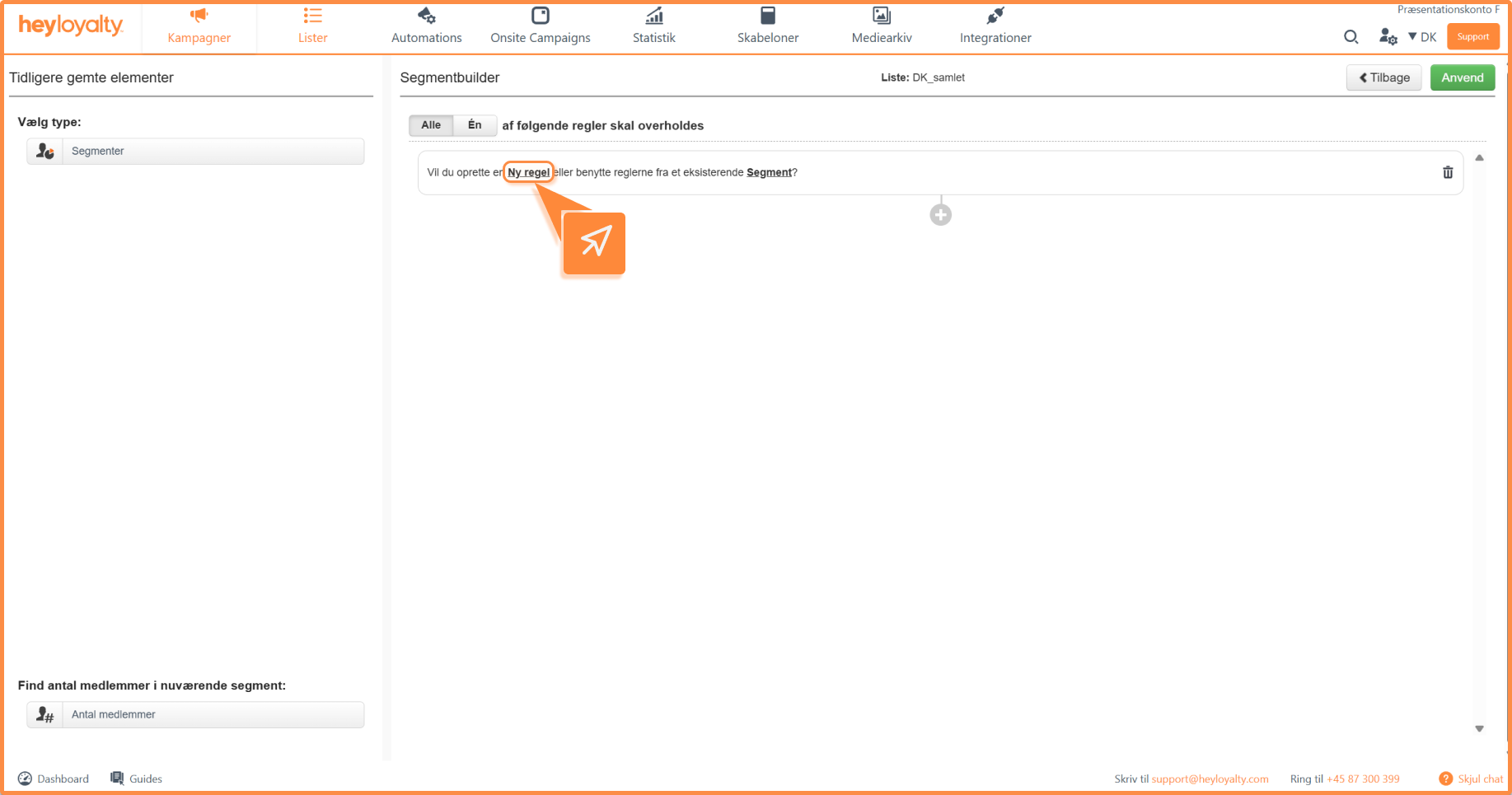
From here, you can segment on the fields available in your list.
Segment Builder
A segment consists of rules—and rules consist of criteria. Below, you can read about the options available to you for creating rules:
- Create a new rule – here you can create a new segment
- Use the rules from an existing segment —if you want to build on a segment.
You can choose whether “All” or “Any” of your rules in the segment must be met in order to include members in it.
In other words, if you select “All, “ a member must comply with all the rules in the segment; otherwise, they will not be included.
If, on the other hand, you select “One, “ the member need only comply with one of the rules.
Start by clicking New rule –> New criterion –> Choose field to segment on.
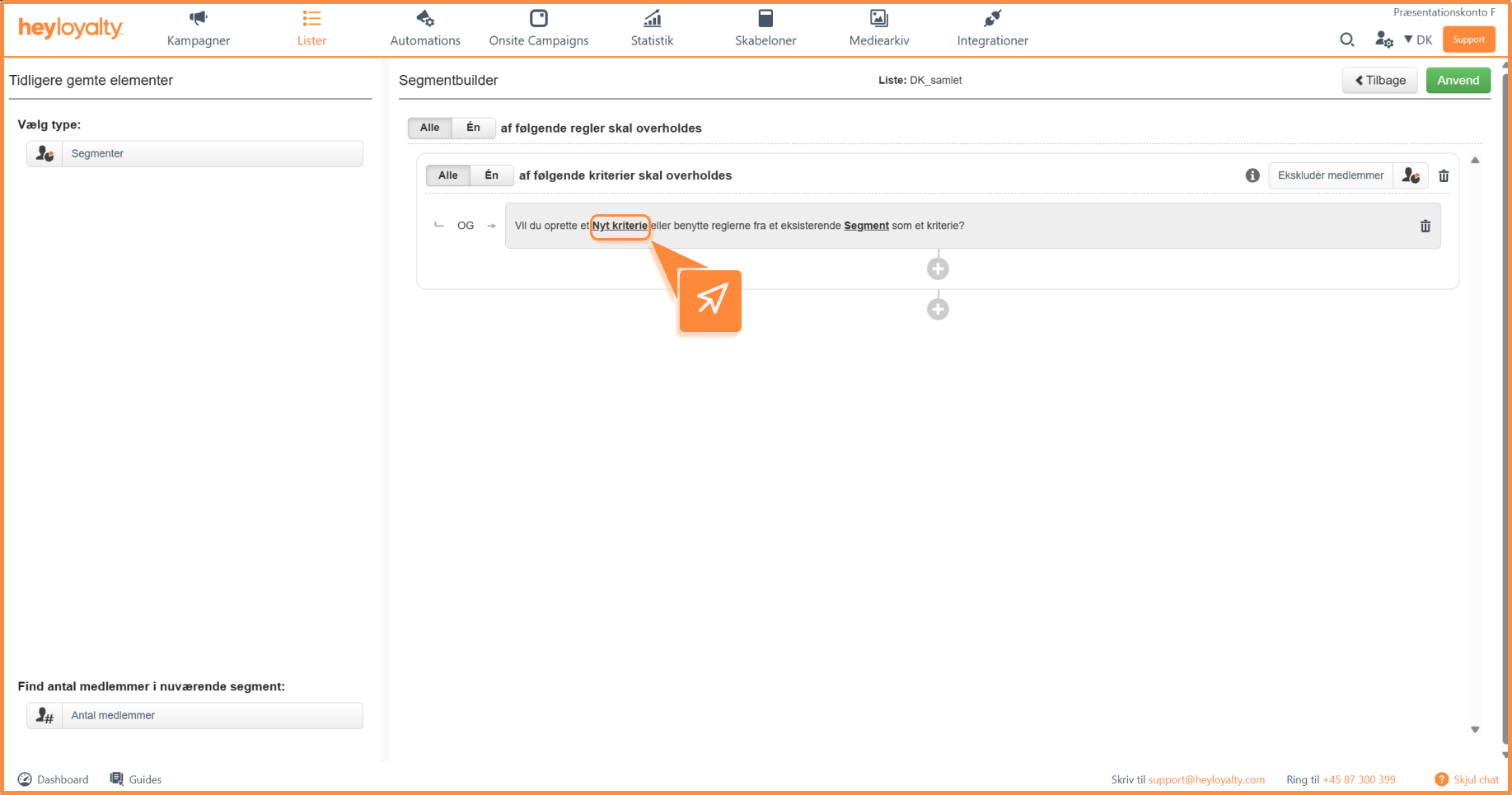
After you click ” New Rule” — > ” New Criterion” — > Select Field the subsequent ” Select Operator ” field will change its segmentation options depending on the type of field you selected previously.
You can segment based on all the information available in your Heyloyalty list. You can read about our standard segmentation options here.
For date fields, you can select fixed and relative dates (e.g. , before, on, after, at least, is in less than), and similarly, for text fields, you can, for example, select an operator such as equals, does not equal, contains, or does not contain.
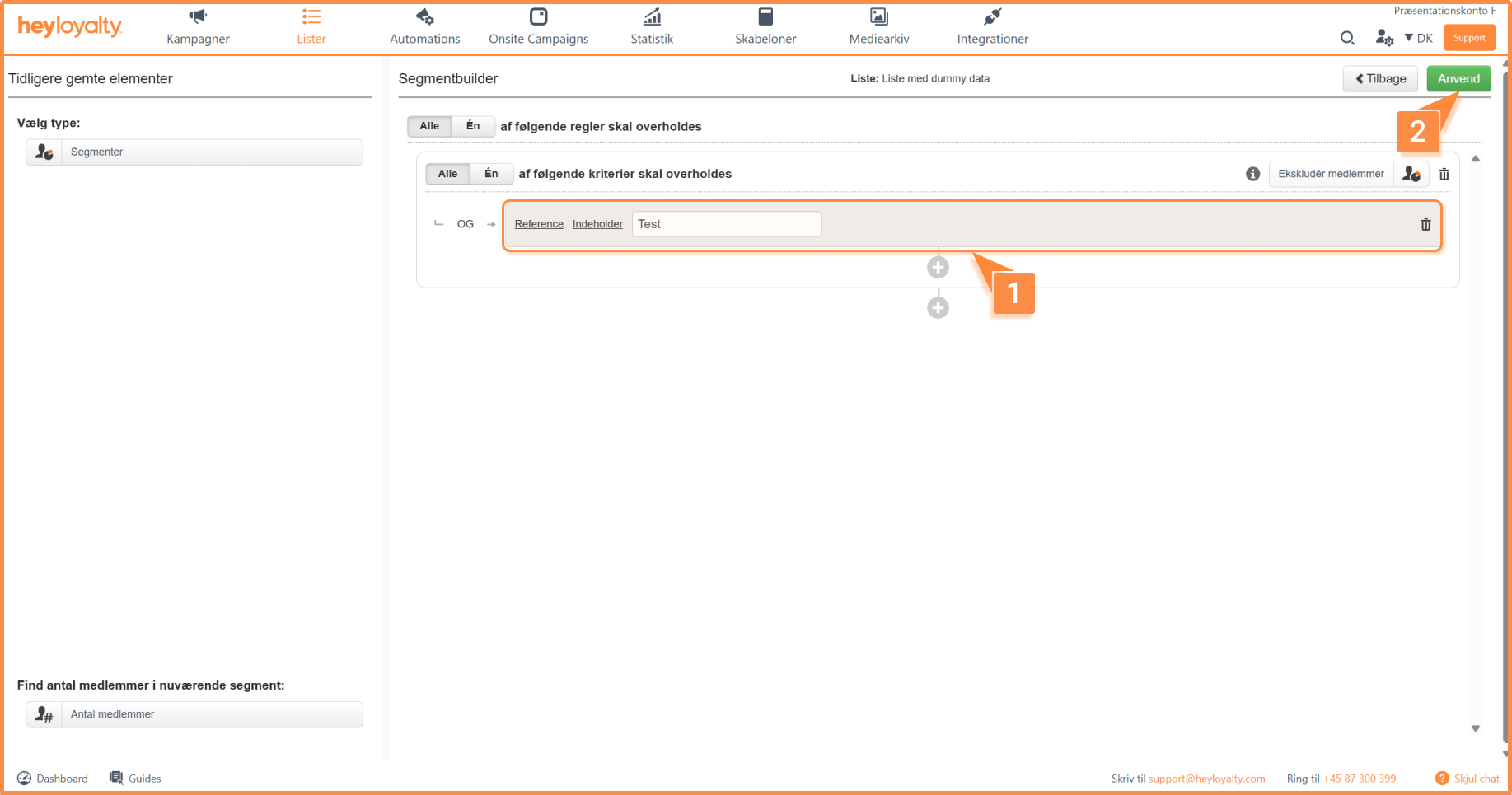
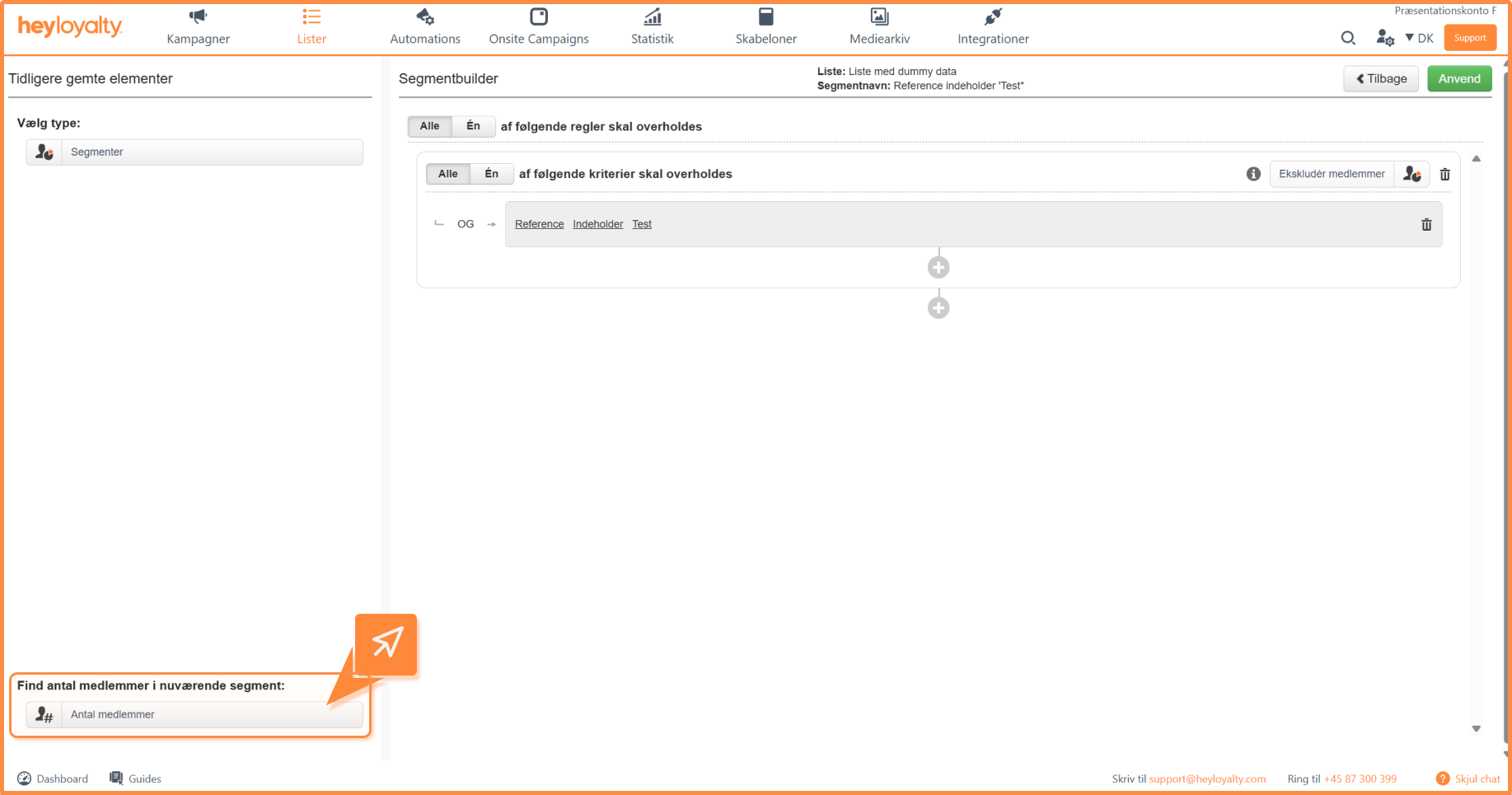
After you’ve selected your field and operator and entered your text, you can click the bar below “Find the number of members in the current segment.”
We are currently investigating how many contacts on the list are part of the current segment you are in the process of building.
Click Apply and then Save and give your segment a name so you can easily remember what the segment does. Choose name and click Save again.
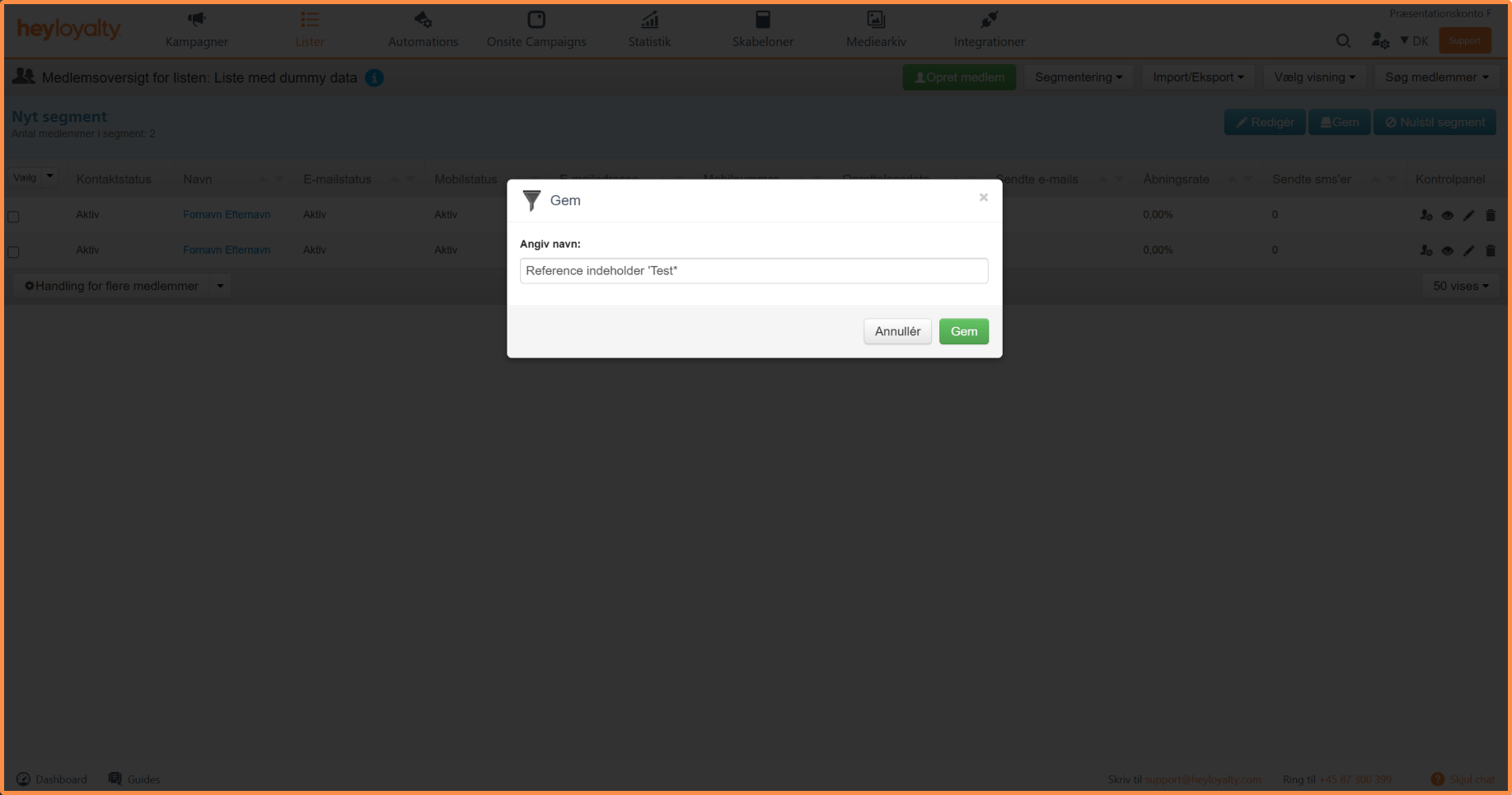
Your segment is now saved and can be used in your campaigns and automations.
Use a segment in a campaign
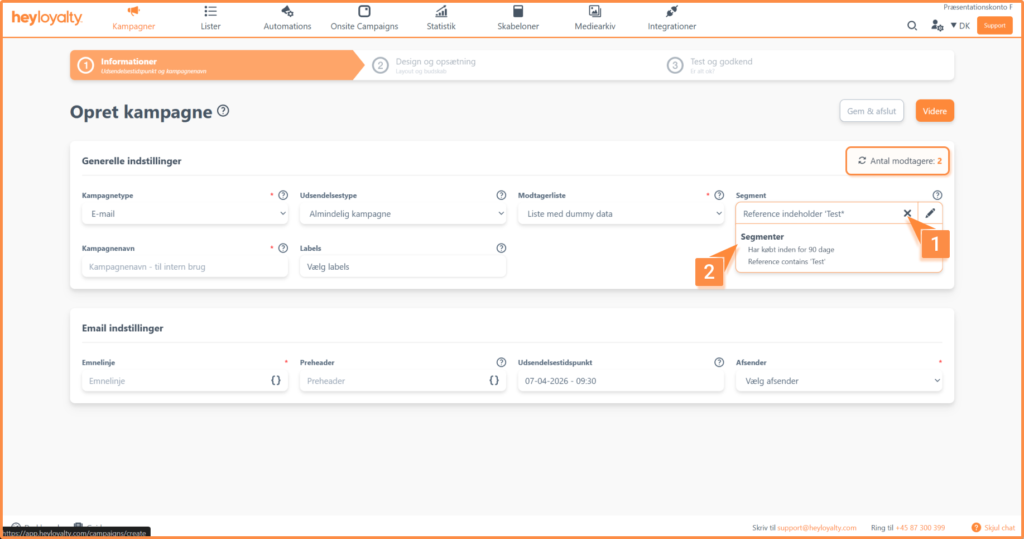
Click Campaigns –> Create new campaign –> Select segment –> Select the segment that you want to use.
Once you’ve selected the segment, you’ll also notice that the “Number of Recipients” will change from showing all active contacts on the list to a smaller number, because the campaign will now only be sent to the recipients in that segment.

If you need information or help that you cannot find here on the guide site, you are always welcome to contact our support!
support@heyloyalty.com / tel. 87 300 399