
What is it, and what does it require?
Raptor is a complete SaaS that personalizes and makes recommendations on various platforms – including web and email. You can use Raptor to create behavior-based triggers.
Personalized and relevant newsletters and automated messages with dynamic content increase customer loyalty, CTR, conversion rate, upsell, and revenue.
It is beneficial to target your campaigns and become more precise in your execution by using Raptor’s intelligent triggers. Raptor makes it possible to make intelligent segmentations of your subscribers, so your customers receive content they find relevant (based on their behavior).
Setting up Raptor
Setup Raptor by clicking on Integrations –> List integrations –> Raptor –> Setup integration –> Create new Raptor
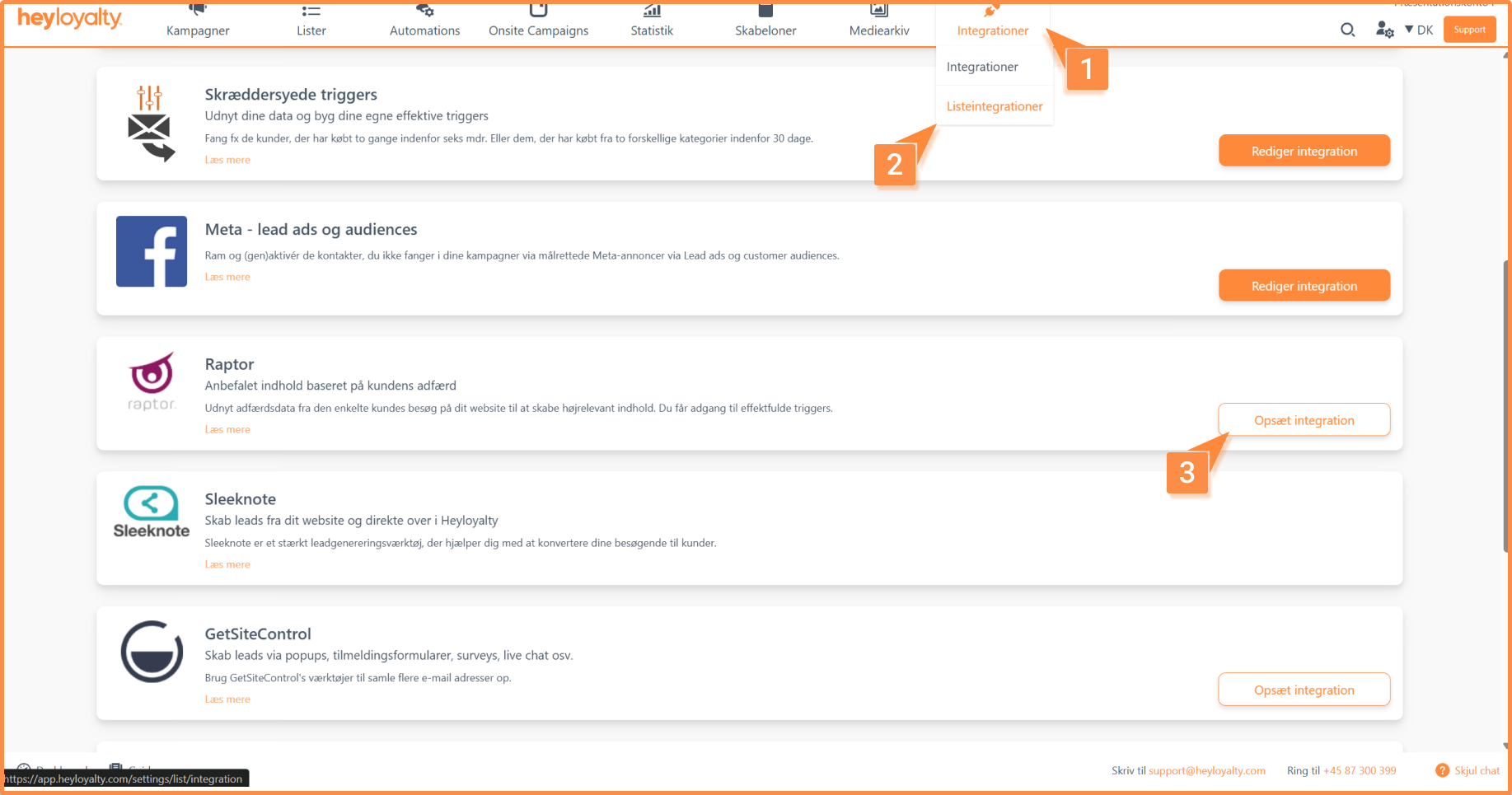
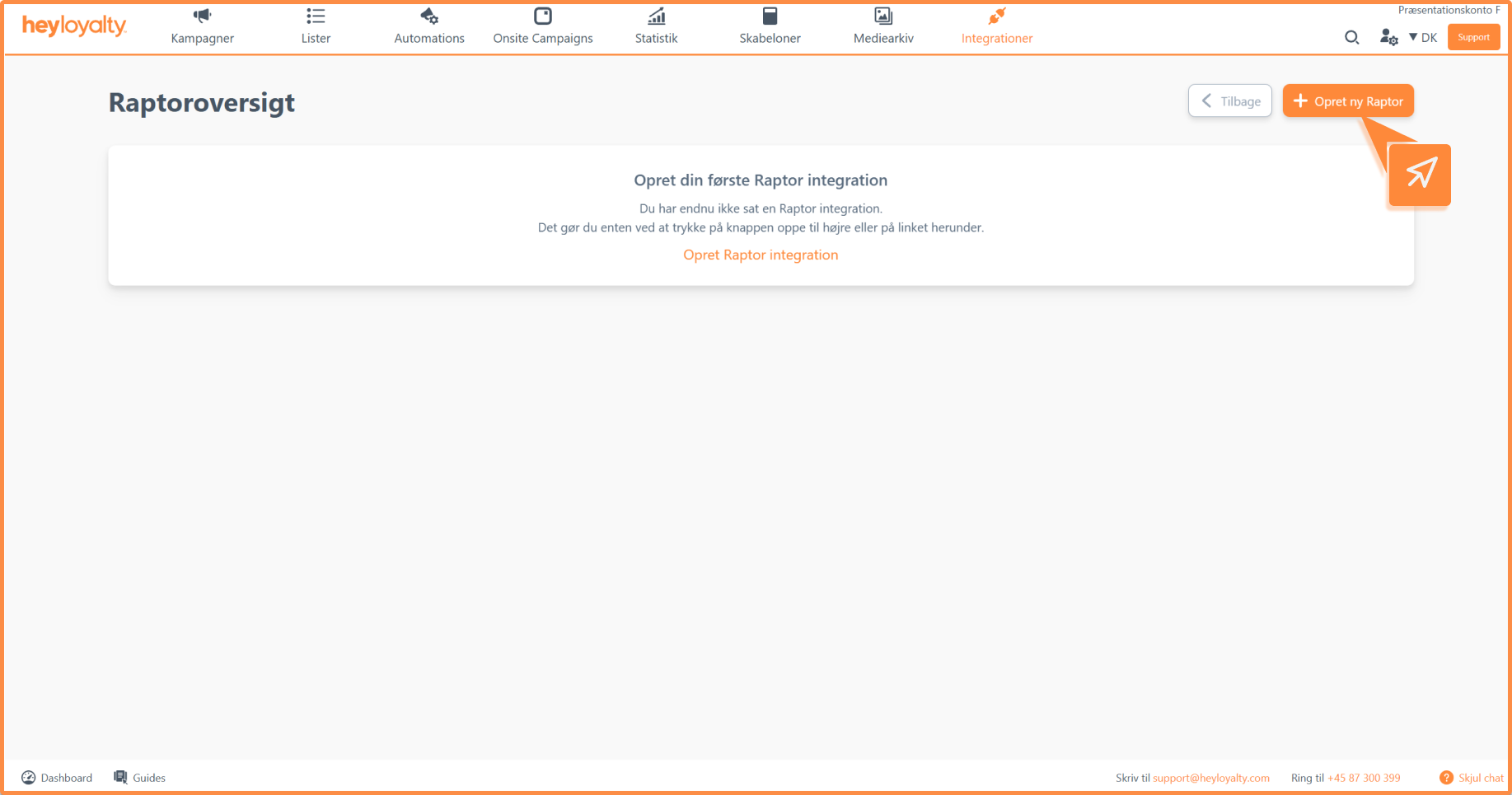
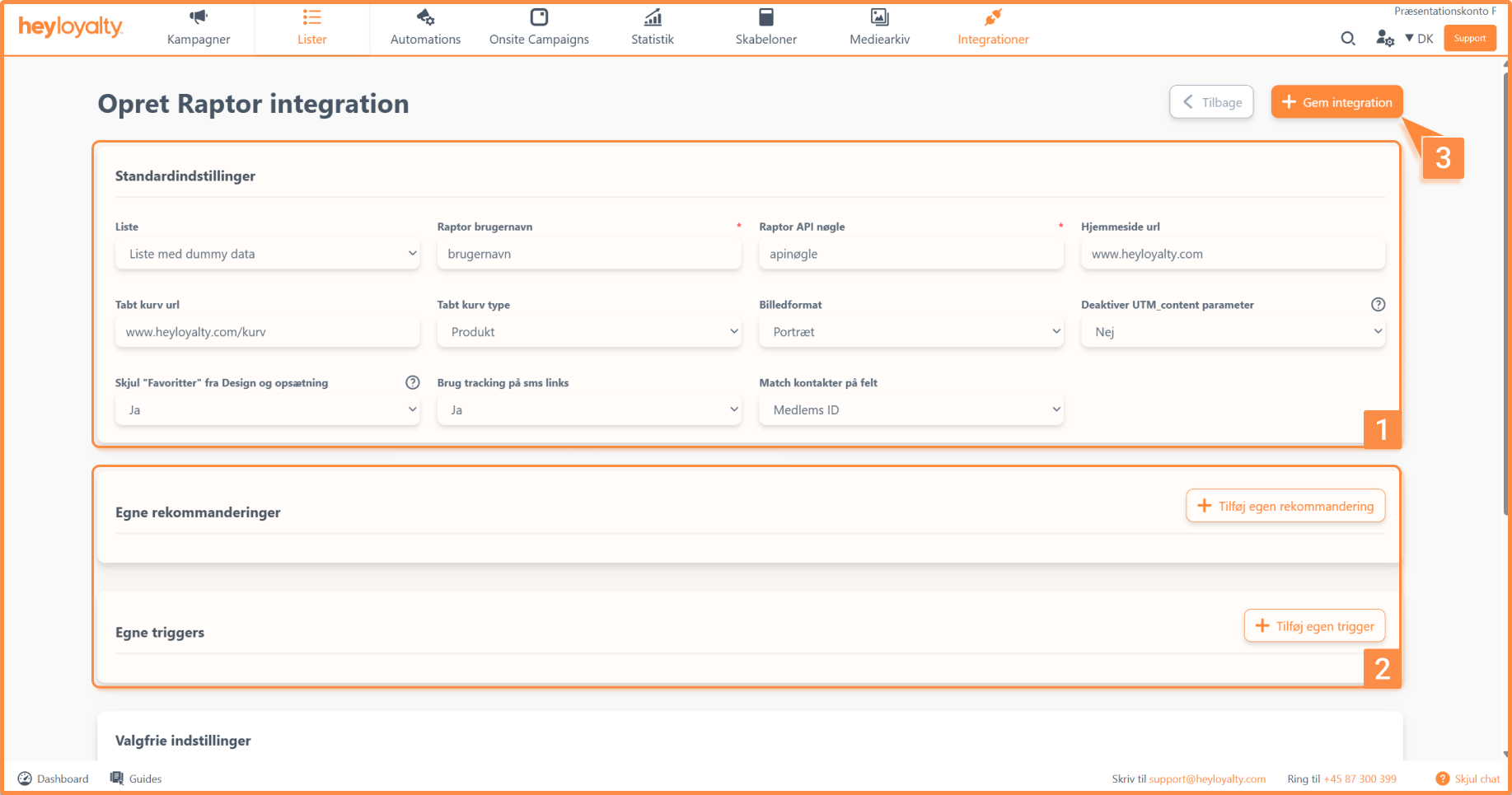
Fill in the fields.
You can find your Raptor username and Raptor API key by logging in to Raptor.
Under Custom recommendations, you can add recommendations you have created in Raptor, so you can choose them in your newsletters. See how in the section Use your own recommendations from Raptor.
Under Custom triggers, you can add triggers you have created in Raptor. Which triggers you want and how they are set up varies from account to account, so please contact Heyloyalty’s support team if you need help.
You should only change the pre-filled fields if you know that the setup on your website and in Raptor is different. For most people, it will work if you leave it as the standard.
Finish with Save integration.
Use Raptor in your newsletters
Once you’ve set up a Raptor integration, you’ll be able to use a Raptor block, which you can insert into your newsletter in Step 2.
When you drag a Raptor block into your newsletter, you’ll see an option on the right side of Step 2 to configure the following settings:
- Products per row: Choose how many products to display in each row. You can choose between 1 and 4 products. Keep in mind that the number of products must match your product feed template.
- Number of rows: Select how many rows of products to display in your newsletter.
- Template: Select the product feed template that matches your Raptor product feed.Design button: Here you can customize the layout of your Raptor product feed.
- Styling: Here you can define CSS styling for your feed’s layout.
Select content type
Under “Content Type,” it’s important to select the correct recommendation type. Below, you can see what product recommendations each type provides:
- Personal product recommendations: Displays personalized product recommendations based on an overall picture of the user’s behavior.
- Popular products: Shows the products that have been purchased the most times on your online store.
- Recently viewed products: Displays the products the user has most recently viewed on your online store.
- Popular products within category: Select the ID of the category from which you want to view the most purchased products.
- Popular products from a brand: Select the ID of the brand for which you want to view the best-selling products.
- Most viewed products from a brand: Select the ID of the brand from which you want to view the most viewed products.
- Personalized recommendations based on last shopping cart: Displays products based on the items the user most recently added to their shopping cart.
- Products on sale: Shows only products that are on sale.
If you have added Custom recommendations to the integration, they are at the bottom of the list, with the name you gave them. Read more in the section Use your own recommendations from Raptor.
Filter the products displayed
Once you’ve selected a content type, you can filter which products to display. You can choose between All products, Show only products on sale and Show only products that are not on sale.
If you want to define more specifically which products should be displayed, you can send parameters to Raptor under Add parameter. Click Add, fill in Parameter name (the name of the parameter in Raptor) and Parameter value, and click Add parameter. The parameters are then listed under Parameters, where you can edit or delete them.
Use your own recommendations from Raptor
Besides the standard content types, you can use recommendations you have created in Raptor. You add them to the Raptor integration, and then you can choose them in the Raptor block in the campaigns and automations sent to the list the integration is set up on.
Add a recommendation to the integration
Go to Integrations → List integrations, and click Edit integration next to Raptor. Choose Edit Raptor in the menu next to the list the recommendation is for. If you are creating a new integration, you can add the recommendations right away.
Click Add custom recommendation under Custom recommendations, and fill in the fields:
- Recommendation name: The name the recommendation gets under Content type in the Raptor block. Choose a name you and your colleagues will recognise.
- Recommendation value: The name of the method in Raptor that delivers the products. Heyloyalty sends the value to Raptor when the products are fetched, so write it exactly as it appears in Raptor. The standard content types use methods such as
GetUserImages(Personal product recommendations) andGetUserImagesForTrendingItems(Popular products) in the same way. If you are unsure of the value, ask Raptor.
Click Add custom recommendation again to add more. Finish with Update integration or, for a new integration, Save integration.
Edit or remove a recommendation
Once the recommendation is saved, its name can’t be changed. You can only edit Recommendation value. To remove a recommendation, delete the value and click Update integration. To rename it, remove it and add it again with the new name.
Choose the recommendation in the Raptor block
Drag a Raptor block into your newsletter in Step 2, and choose the recommendation under Content type. Your own recommendations are at the bottom of the list.
Heyloyalty fetches the products from Raptor for each recipient and asks for Products per row times Number of rows products. The products are displayed with the template you chose under Template.
The sale price filter under Show and the parameters under Add parameter also work for your own recommendations. If the recommendation needs extra input, such as an ID, send it as a parameter (see Filter the products displayed). The category and brand ID fields are only shown for the standard content types that use them.

If you need information or help that you cannot find here on the guide site, you are always welcome to contact our support!
support@heyloyalty.com / tel. 87 300 399